My 3-2-1 Backup Strategy for Video Production
How I back up 16TB of video production files across three drives, two machines, and the cloud — and why it's worth the effort.

Last updated: March 9, 2026
Why Backups Matter More Than You Think
I've been producing video content for years, and the thought of losing footage keeps me honest about backups. One dead drive shouldn't end your business. One ransomware attack shouldn't wipe your archive. One house fire shouldn't delete three years of work.
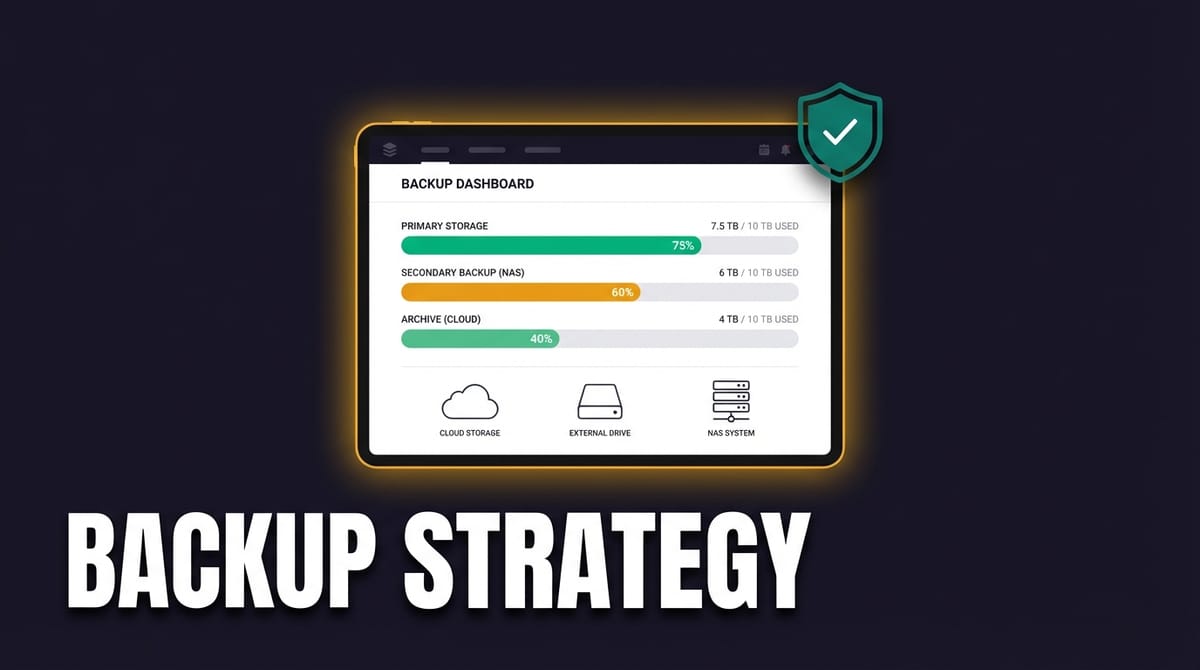
The 3-2-1 backup rule is simple: keep three copies of your data, on two different media types, with one copy offsite. Most creators I talk to have zero backups. They're working off a single drive and hoping for the best.
Here's my full setup — what it actually looks like, what it costs, and the scripts that keep it running while I sleep.
What Is the 3-2-1 Backup Rule?

The 3-2-1 rule is the standard backup strategy that sysadmins have used for decades:
- 3 copies of your data (the original plus two backups)
- 2 different media types (local SSD + network storage + cloud)
- 1 offsite copy (cloud storage in a different physical location)
The idea is redundancy at every level. A single point of failure should never take you out. If your main drive dies, you have a local backup. If your house floods, you have a cloud copy. If your cloud provider goes down, you still have two local copies.
The Hardware

My setup runs across two machines on the same LAN:
Mac Studio (primary workstation)
- Active Drive — 2TB SSD for current projects, exports, assets, and scratch files (enclosure)
- Archive Drive — 4TB SSD for mirrored work, accumulated exports, and my Photos library
Mac Mini (backup server, always on)
The Mac Mini sits in the office closet running 24/7. Its only job is to receive backups over the network and push them to the cloud. It doesn't need to be fast — it just needs to be reliable and always on.
- Cold Drive — 16TB HDD. Bought this one years ago before the great AI hardware price surge. It holds a full mirror of Archive and rarely gets touched directly.
Why SSDs for the production drives? Speed, silence, and reliability. Spinning disks are cheaper per terabyte, but I don't want to hear a mechanical drive grinding at 3 AM while I'm working. SSDs don't care about vibration or heat the way HDDs do. The Cold drive is the exception — a 16TB HDD I bought years ago when spinning disk was the only affordable option at that capacity. Since it's just a backup target that runs overnight, speed and noise don't matter.
For a full breakdown of my machines and peripherals, check out my hardware uses page.
Drive Layout
Here's what lives where:
| Location | Drive | Contents |
|---|---|---|
| Mac Studio | Active (2TB SSD) | Projects, Exports, Assets, Scratch |
| Mac Studio | Archive (4TB SSD) | ActiveMirror, Exports (accumulating), Photos |
| Mac Mini | Cold (16TB HDD) | Full mirror of Archive |
| Cloud | Google Drive (via Arq7) | Full backup of Mac Mini |

The Active drive is where I work day-to-day. Archive is the local backup. Cold on the Mac Mini is the second copy. Google Drive is the offsite copy. That's your 3-2-1.
Carbon Copy Cloner

Carbon Copy Cloner is what makes this all work automatically. I have three tasks chained together that run every night:
Task 1: Active → Archive/ActiveMirror (3:00 AM)
Mirrors everything from the Active drive to Archive, excluding the Exports folder. This is a true mirror — deleted files on Active get deleted on Archive.
Task 2: Active/Exports → Archive/Exports (chained after Task 1)
Copies new exports from Active to Archive, but never deletes. This is intentional — I want Exports to accumulate on Archive so I have a running history of everything I've exported, even after I clean up the Active drive.
Task 3: Archive → Cold over LAN (chained after Task 2)
Mirrors the entire Archive drive to Cold on the Mac Mini. Runs over the local network and typically finishes within an hour depending on how much changed.
Why does Exports get special treatment? Because exports are the finished product. I want to keep every final render, even if I delete the source project months later. The Active drive stays lean. Archive accumulates.
Automated Cleanup Scripts
Drives fill up. That's inevitable with video. I wrote shell scripts that run via launchd to keep things under control:
active-exports-cleanup — Keeps only the 21 newest exports on the Active drive. Everything older has already been copied to Archive by CCC.
archive-exports-cleanup — Triggers when Archive hits 90% capacity. Before deleting anything, it verifies that each file exists on Cold first. No verification, no deletion.
cleanshot-cleanup — Deletes screenshots and screen recordings older than 14 days. CleanShot generates a lot of files if you let it.
cleanup-old-libraries — Removes Final Cut Pro libraries and other project files older than 60 days from the Active drive. If the project isn't done by then, it's either abandoned or already archived.
All four scripts run between 5:00 and 6:00 AM, after the CCC chain finishes. The timing matters — cleanup should never race ahead of backups.
Photos Backup
Both my wife and I have user accounts on the Mac Mini, and both accounts have iCloud Photos set to "Download and Keep Originals." That means the Mac Mini always has a complete local copy of every photo and video in both of our iCloud libraries.
Since Arq7 backs up the entire Mac Mini to Google Drive (more on that next), our Photos libraries get backed up to the cloud automatically — no extra configuration needed.
Cloud / Offsite
Arq7 runs on the Mac Mini and backs up everything — the Cold drive, both Photos libraries, and the system itself — to Google Drive. This covers the "1 offsite" part of 3-2-1.
Arq uses its default excludes (system files, caches, etc.) and runs continuously. No scheduled window — it just picks up new and changed files as they appear. The initial upload took weeks, but now it's incremental.
Google Drive with Google One gives me the storage I need at a reasonable price. I looked at Backblaze B2 for this, but Google Drive's integration with Arq was simpler and the per-TB pricing worked out about the same for my volume.
Server Backups
Local production backups are one thing. I also run servers that need their own strategy — and it's a completely separate concern.
Hetzner Cloud
My main VPS runs on Hetzner. I take automated snapshots through their control panel — point-in-time recovery if something goes sideways. Snapshot pricing is fair and the restore process is straightforward.
For file-level backups, I run rsync to Backblaze B2 on a cron schedule. Granular file recovery without needing to restore an entire server snapshot.
WP Remote


For my WordPress sites, WP Remote handles backups, updates, and monitoring from a single dashboard. It covers the WordPress-specific stuff — database backups, plugin updates, security scans — that a generic file backup would miss.
I covered WordPress backup plugins in more detail in my WordPress security and backup guide.
The Full Schedule

Here's how everything fits together on a typical night:
| Time | What Happens |
|---|---|
| 3:00 AM | CCC Task 1: Active → Archive (mirror, excl. Exports) |
| ~3:30 AM | CCC Task 2: Active/Exports → Archive/Exports (copy, no delete) |
| ~4:00 AM | CCC Task 3: Archive → Cold over LAN (mirror) |
| 5:00 AM | Cleanup scripts: active-exports, cleanshot, old libraries |
| 6:00 AM | Archive-exports cleanup (with Cold verification) |
| Always | Arq7: Mac Mini → Google Drive (continuous) |
Frequently Asked Questions
How much does a 3-2-1 backup setup cost?
A few hundred in drives, plus whatever you pay for cloud storage. I use Google One. The software side is Carbon Copy Cloner (one-time purchase) and Arq7 (one-time purchase). No subscriptions grinding away.
Is cloud backup enough for video files?
Not by itself. Upload speeds are slow, restores take forever, and you're trusting one provider with everything. Cloud is the offsite leg of 3-2-1 — it's not the whole strategy.
How often should I back up video projects?
Every night. My CCC tasks run at 3 AM and the whole chain finishes before I wake up. If you're only backing up weekly, you could lose a week of work to one bad drive.
Is It Overkill?
Yes. That's the point.
The total cost of this video production backup setup is a few hundred dollars in drives plus ongoing cloud storage. Compare that to re-shooting a client project, losing your YouTube archive, or telling a sponsor their deliverable is gone.
One drive failure shouldn't end your business. One bad update shouldn't wipe your server. One accident shouldn't erase your photo library.
Want to see everything that makes this workflow tick? Here's my full content website stack and the tools I use to run the business.
If your backup strategy feels like overkill, you're probably doing it right.