I Taught Claude Code to Fill Out My PDFs. Here's How to Do the Same.
Never type your name and address into a PDF again. Then teach Claude to remember how you like it done.

Links Mentioned in This Video
Simple accounting software that doesn't require an accounting degree. Build professional invoices in seconds, run billing and payroll from one platform, and generate business reports instantly. Stay organized for tax season year-round.
You get sent a PDF. Tax form, vendor application, insurance claim. You open it in Preview, start clicking into fields, tabbing around. Halfway through you realize you missed a field on page one. So you scroll back up, fill it in, lose your place.
Now multiply that by a dozen clients.
Claude Code can fill these out for you. Drop in the blank form, tell it what data to enter, and it gives you back a completed PDF. Here's the full setup.
What you need
Claude Code installed and a PDF to fill out. That's it.
If you haven't set up Claude Code yet, start with the beginner's guide. Come back here once it's running.
Want to follow along? Grab a W-9 from the IRS: download the blank form here. Everyone in business has dealt with a W-9. It's fillable, free, and you probably have the data memorized.
Fillable forms (the kind with actual fields you can click into) work best. Flat PDFs work too, but expect some extra back-and-forth. More on that later.
Setting up the project

Create a folder for your PDF work:
mkdir ~/pdf-filler
cd ~/pdf-filler
Drop your blank PDF in there. I'll use a W-9 as the example, but this works with any fillable form.
Launch Claude Code:
claudeIt starts in whatever directory you're in, so it can already see every file in the folder. Including your PDF.
Not a sponsor, but this is my referral code so I get $10 in credit if you sign up.
Getting files to Claude Code

If Claude Code runs on the same machine where you have the PDF, you're already set. The file is in the folder. Claude Code can see it.
If you run Claude Code on a remote machine (like I do with my Beelink), you need to get the file over there first.
Syncthing is what I use. I have a shared folder between my MacBook and the Beelink. Drop a file on the laptop, it shows up on the Beelink in seconds. No commands, no thinking about it. If you want a detailed walkthrough on setting up Syncthing, I covered it in my AI tools post.
SCP works if you just need to copy one file over SSH:
scp ~/Downloads/w9-blank.pdf beelink:~/pdf-filler/You can also drag and drop if you're connected through VS Code Remote or something similar.
The method doesn't matter. Get the PDF into the folder where Claude Code is running and you're good.
Reading the PDF

Before filling anything, ask Claude Code to look at what you're working with:
Read w9-blank.pdf and list all the form fieldsClaude Code opens the PDF, reads the content, and lists every field it finds. For a W-9 you'll see things like: name, business name, federal tax classification, address, city, state, ZIP, and either SSN or EIN.
This step matters because it tells you exactly what Claude Code can see. If it reads the fields correctly, you're in good shape. If it comes back with garbled text or no field names, you're probably dealing with a scanned image rather than a fillable form. That changes the approach.
Filling the form

Give Claude Code the data. Be specific and match the field names it found in the previous step:
Fill out w9-blank.pdf with this information:

Name: Dave Swift
Business name: Swift Media LLC
Tax classification: LLC
Address: 123 Main Street
City: Austin
State: TX
ZIP: 78701
EIN: 12-3456789

Save it as w9-completed.pdf
Claude Code writes a short script, runs it, maps your data to the form fields, and outputs the filled PDF. You watch the whole thing happen in real time.
Once it's done, verify the output:
Read w9-completed.pdf and confirm all the fields are filled correctlyClaude Code reads back the completed form and tells you if anything is missing or off. Open the file yourself too. Trust but verify.
Batch filling
Here's where this pays for itself. Say you need the same form filled out for five different people. Don't do them one at a time. Give Claude Code the full list:
Fill out a W-9 for each person below using w9-blank.pdf as the template.
Save each as a separate PDF in ./completed/

1. Alice Johnson, AJ Consulting LLC, EIN: 11-1111111, 100 Oak Ave, Austin TX 78702
2. Bob Martinez, Martinez Design, EIN: 22-2222222, 200 Pine St, Dallas TX 75201
3. Carol Chen, Chen Analytics, EIN: 33-3333333, 300 Elm Blvd, Houston TX 77001
Three completed forms in about thirty seconds. You didn't click into a single field.
What doesn't work
Flat PDFs are the main limitation. If someone sends you a scanned document with no actual form fields, Claude Code can still read the text content, but it can't fill in fields that don't exist. Instead, it has to overlay text on top of the image at specific pixel coordinates. That means a lot of "move that 10 pixels to the left" and "bump the font size down to 11" back and forth.
It works, but it's slow. My advice: if someone sends you a flat PDF, ask for the fillable version first. Most government and corporate forms have one. You'll save yourself twenty minutes of coordinate tweaking.
This works. But I got tired of repeating myself.
After the third form in a row where I typed "inspect this PDF, match my info to the fields, ask me about the rest, then fill it and flatten it," I noticed something. I was giving Claude Code the same instructions every single session. Same workflow, different form.
That repetition is the tell. If you keep re-teaching Claude the same steps, you've already built the workflow in your head. You just haven't written it down yet.
That's when I turned it into a skill.
What is a skill?

There's a spectrum for automating something like this:
A script is pure code. Every step is explicit. Deterministic, but rigid — if the form layout changes or a field gets renamed, you rewrite the script. You also need to know a PDF library well enough to write it.
Ad-hoc prompting is the opposite extreme. You tell Claude what to do in plain English each session. Flexible, sure, but you keep re-explaining the same workflow. Some sessions nail it. Others miss steps you forgot to mention.
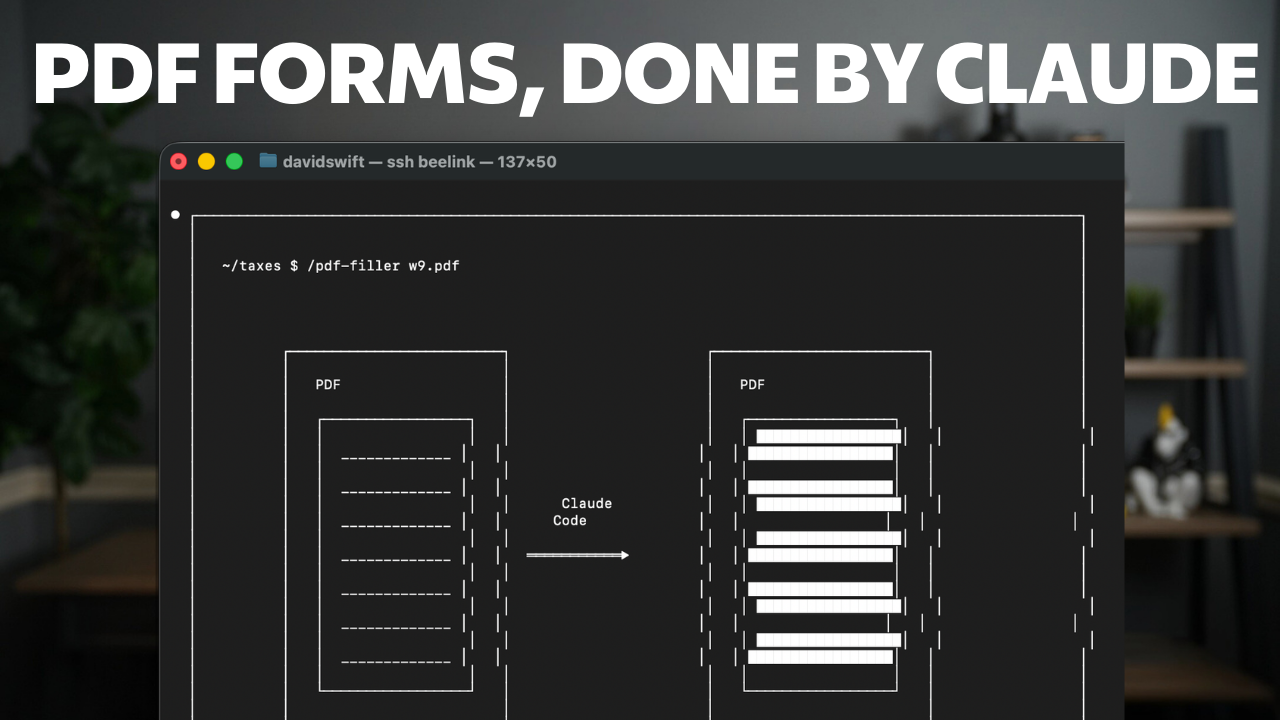
A skill splits the difference. You write the instructions once, save them to a file, and Claude follows the same steps every time. Same consistency as a script, written in English instead of code. Type /pdf-filler and it runs the whole workflow.
In Claude Code, a skill is just a text file. Write the instructions in your own words, drop it in a folder, and Claude Code picks it up automatically. No plugin system, no app store. It's a document.
What the PDF filler skill does

Instead of typing out instructions every session, one command handles the full workflow.
The skill learns your info as you use it. First form, it asks for everything. When it finishes, it offers to remember your name, address, and other reusable info. Next form, those fields auto-fill and you just confirm they look right.
It also figures out field names on its own. One form calls it "First Name," another uses "Owner_First_Name," a third has "ParticipantFName." The skill matches all of these to your info without you thinking about it.
For the fields it can't auto-fill, it groups them by category and walks you through them in batches instead of asking 40 things one at a time. Then it produces a locked PDF ready to send, with the fields flattened so nothing shifts when the recipient opens it.
Below I'll walk through building this skill from scratch, one version at a time.