Documentation AI Review: AI-Powered Docs With MCP Server
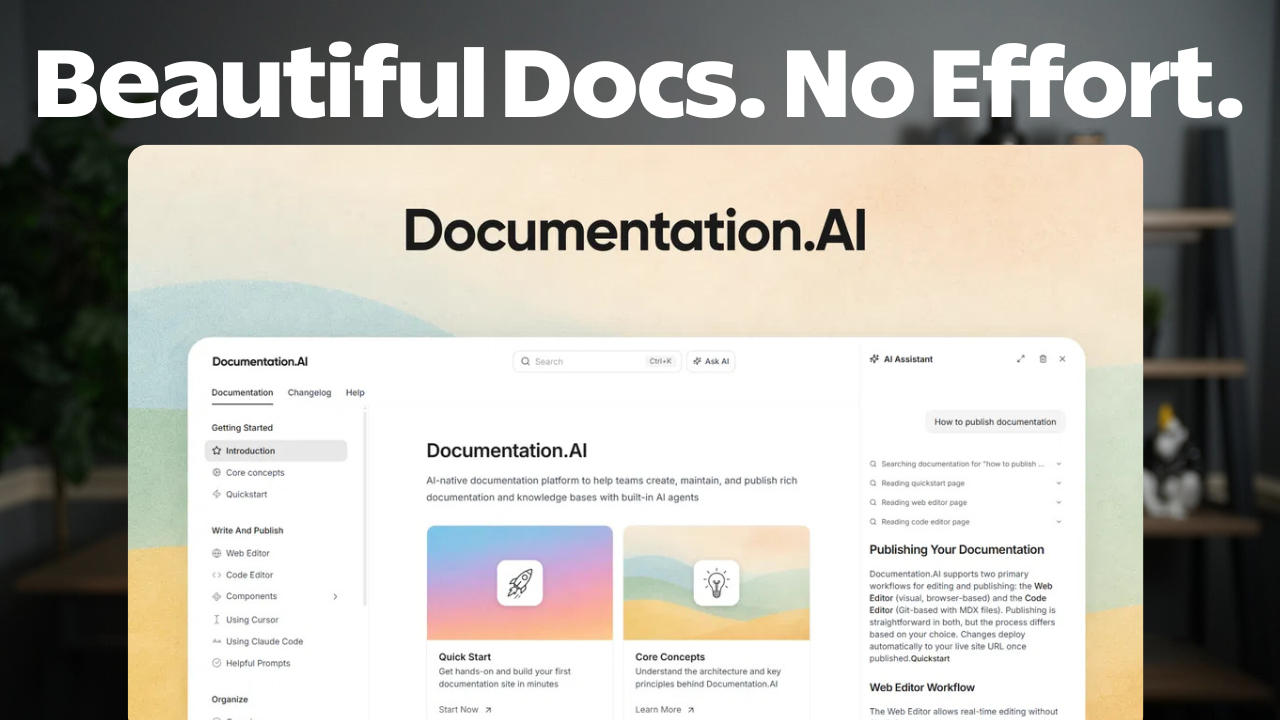
Documentation AI is a platform that helps you build professional documentation with AI-powered writing, GitHub integration, and a built-in MCP server that lets AI agents actually read your docs. Here's my full review of this AppSumo lifetime deal.


AppSumo's AI Week features the best AI-powered tools at the lowest prices, running through February 27th. Everything from marketing to productivity to research — all available as lifetime deals. Plus members save an extra 10% on every purchase.
Documentation AI
AI-powered documentation platform with built-in MCP server for creating help docs, API references, and knowledge bases
SaaS founders, developers, and service businesses who need professional, AI-accessible documentation
GitBook, ReadMe, Notion docs, Mintlify
What is Documentation AI?

Documentation AI is a platform for building help docs, API references, and knowledge bases. You can organize content by products, languages, and versions — all within a clean, modern interface. It's the kind of tool that handles the structure for you so you can focus on the content.
What makes it stand out is the AI layer. You can connect your GitHub repo and have AI generate documentation pages from your codebase. There's also a built-in MCP server so your AI agents — whether you're running Claude Code, Claude Desktop, or any other LLM — can read and search your docs programmatically.
It's normally $29/month, but through AppSumo's AI Week, you can grab lifetime access starting at $59.
Organization That Actually Makes Sense
The organizational structure inside Documentation AI is deeply layered, and I mean that as a compliment. At the top level, you have organizations. Each organization can have multiple doc sites. Within each site, you can set up products, languages, and versions as navigation tabs.
Inside those tabs, you create page groups (which act as sidebar headings) and then individual pages within those groups. It's nested folders done right — intuitive enough that you understand it within minutes, but flexible enough to handle complex documentation needs.
If you run multiple products or services, you can keep documentation for each one completely separate while still maintaining a unified search and AI experience across all of them.
AI-Powered Documentation Writing
The standout feature here is the GitHub integration. Connect your repo, open the AI chat inside the editor, and tell it what you need. I asked it to create a getting started guide for a WordPress plugin, and it spent about 45 seconds reading through the actual repo before writing a thorough, accurate doc page.
It didn't rush through it or hallucinate features — it genuinely read the code and produced something I could publish with minimal edits. The AI writes directly to the page, no copy-paste needed. And if you want changes, just keep chatting with it.
Beyond GitHub, Documentation AI can also scrape your website when you first connect a custom domain and start building docs from what it finds there. So you're not starting from zero.
The Lexical Editor
The editor is built on Lexical, the open-source editor created by Meta. If you've used Notion or Ghost, you'll feel right at home — blocks are drag-and-drop, and you can use slash commands to quickly insert headings, callouts, code groups, parameter fields, and more.
There are some documentation-specific blocks that I haven't seen in other editors, like code groups and parameter fields. You also get the standard formatting options: tips, warnings, embeds (including YouTube videos), and images.
For developers who are fast typists, the slash command system means you barely need to touch the mouse. Type /h1 for a heading, keep typing, press return, and you're back in body copy. It's quick and clean.
Multi-Language Support
Adding language support is straightforward. In the navigation settings, you add a language tab (English, Spanish, whatever you need), and each language gets its own complete doc structure. Visitors can switch languages from a dropdown on the live site.
Documentation AI won't auto-translate your content for you, but the AI chat makes it trivial. I cited an existing English page, told it to translate into Spanish, and had it write directly to the Spanish version of the page. The whole process took maybe two minutes.
For businesses with an international audience, this is a practical way to maintain documentation in multiple languages without manually duplicating everything.
The MCP Server (This is the Big One)
This is where Documentation AI separates itself from the pack. Every account comes with a built-in MCP server — no setup required. You get a URL, point your LLM at it, and your AI agent can search and read your entire documentation.
I tested this by connecting the MCP server to Claude Desktop. I went into an incognito session (so Claude had zero prior context), pointed it at my documentation, and asked about installing my WordPress plugin. Claude searched the docs through the MCP server and gave me the correct answer straight from my documentation.
If you're building products and using AI coding assistants, this is huge. Your AI agent can reference your actual documentation while working, instead of guessing or relying on stale training data. It's the difference between an assistant that knows your product and one that's making things up.
Privacy and Access Controls
You can set your documentation to public, private, or partially restricted — and the controls are granular. Individual pages, entire groups, or whole language sections can be toggled between public and password-protected.
I tested this by marking a page as protected and then asking Claude to find it through the MCP server. It couldn't — which is exactly the right behavior. Made the page public again, asked Claude to retry, and it worked. The privacy controls apply to both human visitors and AI access.
This is important for teams that need internal developer docs locked down while keeping user-facing documentation open.
Settings and Customization
There are two themes to choose from: Classic and Atlas. You can add your logo, set brand colors, configure the navigation, and connect a custom domain (they give you the CNAME record to add at your DNS provider).
SEO settings are built in, so your docs can get indexed by search engines and LLMs. There's also a redirect feature for when documentation URLs change — no need to mess with server configs or YAML files.
One thing I appreciated: the "Was this helpful?" widget is on by default. You get feedback from users without configuring anything. Small touch, but useful for knowing which docs need improvement.
Plans and Pricing
There are four tiers on AppSumo. Tier 1 at $59 gets you a single editor, doc site, and organization with 200 AI credits per month. It's limited but functional for a simple use case.
Tier 2 is the sweet spot for most people. You unlock all features, get 4 doc sites (public and private), 500 AI credits per month, and everything from the feature checklist. No more red X's.
Tier 3 bumps you to 1,000 credits and 10 doc sites. Tier 4 at $499 looks expensive at first glance, but it's essentially a three-pack — you get 3 organizations, each with 1,000 credits and 10 sites. If you run multiple businesses or manage client documentation, that's strong value.
What I'd Like to See Improved
The AI can write pages and translate content, but it can't build the navigation structure for you. I'd love to be able to say "build me a documentation site for this product" and have it create the page groups, pages, and hierarchy — not just the content within each page.
Auto-translation would be a nice touch as well. The current workflow of using the AI chat to translate page by page is fine for small doc sets, but for large documentation with dozens of pages across multiple languages, a batch translation feature would save real time.
Final Verdict
Documentation AI is the best tool I've reviewed during AppSumo's AI Week so far. It handles the hard parts of documentation — organization, writing, and keeping things current — while adding a genuinely useful AI layer on both sides. AI writes your docs, and AI agents can read them through the MCP server.
If you run a SaaS, build software, or deliver technical services, you probably need better documentation than what you've got. I'm scoring Documentation AI an 8.3 out of 10. The editor is clean, the organizational structure is solid, and the MCP server alone makes this worth considering. I'd recommend grabbing at least Tier 2 to unlock all the features.
Pick it up through my link below — it helps support this content at no extra cost to you.
Frequently Asked Questions
What is Documentation AI?
Documentation AI is a platform for creating and managing help docs, API references, and knowledge bases. It uses AI to generate documentation from your GitHub repos and includes a built-in MCP server so AI agents can programmatically access your docs.
Does Documentation AI have an MCP server?
Yes. Every account includes a built-in MCP server with no additional setup required. You can connect it to Claude Desktop, Claude Code, or any LLM that supports MCP to give your AI agent access to your documentation.
How much does Documentation AI cost on AppSumo?
Lifetime access starts at $59 for Tier 1. Tier 2 (recommended) unlocks all features with 4 doc sites and 500 AI credits per month. Tier 3 adds more credits and sites, while Tier 4 at $499 includes 3 organizations.
Can Documentation AI translate documentation automatically?
It doesn't auto-translate, but the built-in AI chat makes it easy. You can cite an existing page in one language and ask the AI to translate it to another, writing directly to the target page.
Does Documentation AI integrate with GitHub?
Yes. You can connect your GitHub repos and have the AI generate documentation directly from your codebase. It reads through your repository code and commits to produce accurate, contextual documentation.
Can I use a custom domain with Documentation AI?
Yes. You can connect your own domain through the settings. Documentation AI provides the CNAME record you need to add at your DNS provider — Cloudflare, Route 53, or wherever you manage DNS.
Is Documentation AI good for private internal documentation?
Yes. You can set documentation to public, private, or partially restricted. Individual pages, groups, or entire language sections can be password-protected. The privacy controls also apply to MCP server access.
What editor does Documentation AI use?
It uses Lexical, the open-source editor created by Meta. It supports drag-and-drop blocks, slash commands, and documentation-specific elements like code groups and parameter fields.
Get Dave's Toolbox
The tools I actually use, every Tuesday. Free. No spam.
No cost. No spam. Unsubscribe anytime.