How to share API keys with Claude Code (without losing sleep)
Three tiers for sharing API keys with Claude Code — scoped keys, a credentials file, and environment variables. Here's what I actually use.

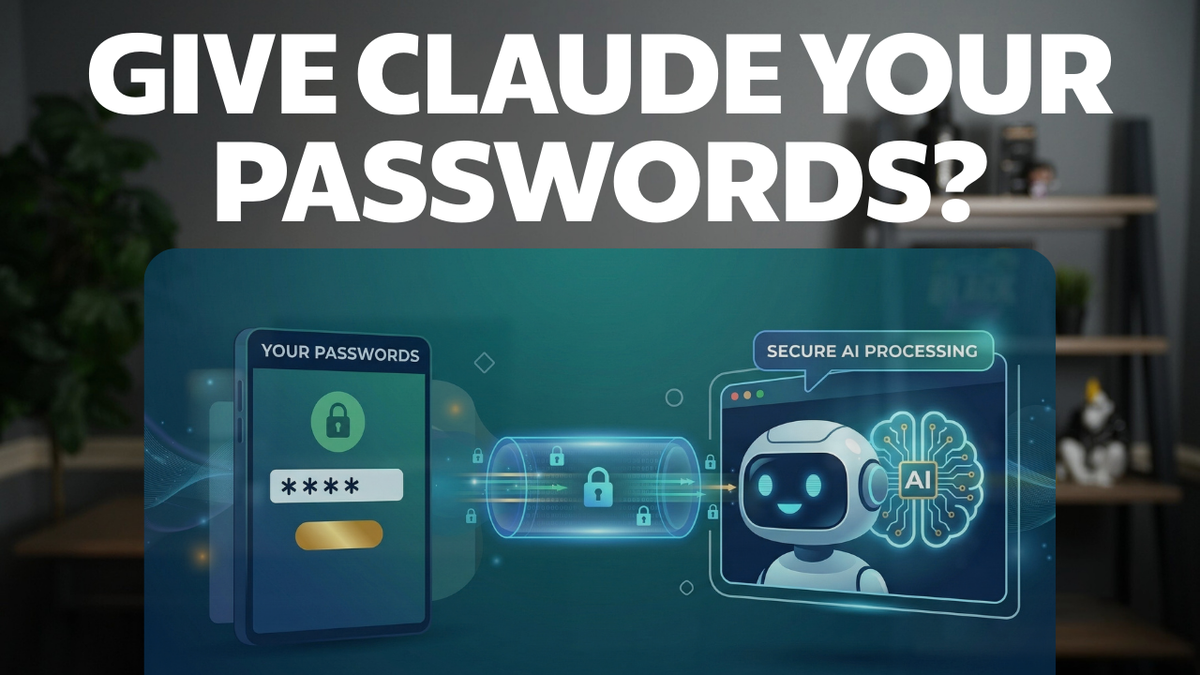
Claude Code gets more useful the more access you give it. Post to your blog, check your analytics, manage your DNS, shorten your links — each of those needs an API key. And the temptation is obvious: just paste the key into the chat and let Claude figure it out.
That works. It’s also a terrible habit.
The risk isn’t that Claude is going to steal your keys. It’s that keys in chat history are keys stored in plaintext on your machine, in Anthropic’s logs, and potentially in any future integration that touches your conversation data. It’s the same reason you don’t hardcode passwords into source files — even if nobody’s looking today, you’re building a bad foundation.
Here’s how I handle it.
What not to do
A few things I’ve seen people do that make me wince:
- Pasting raw keys into the chat. Claude will happily use them, but now that key lives in your conversation history forever. You can’t un-send it.
- Hardcoding keys into CLAUDE.md. If your CLAUDE.md is checked into a repo — and it often is — your keys are now in git history. Even if you delete them later, git log remembers everything.
- Using admin keys when you don’t need them. Your Ghost admin API key can delete every post on your site. If all Claude needs to do is read post titles, give it the Content API key instead. This one’s easy to fix and matters the most.
Tier 1: Use scoped API keys
This is the single biggest thing you can do, and it takes about five minutes per service.
Most APIs let you create keys with limited permissions. Instead of handing Claude the master key, you create a restricted one that can only do what you actually need.
A few real examples:
Ghost has two types of API key. The Content API key is read-only. It can fetch posts, tags, and authors but can’t change anything. The Admin API key can create, edit, and delete posts. If Claude only needs to read your blog data, use the Content key. If it needs to publish drafts, use the Admin key — but know what you’re granting.
Cloudflare lets you create scoped API tokens that are locked to specific zones and permissions. Instead of your Global API Key (which controls everything in your account), create a token that can only edit DNS records for one domain. If that token leaks, the damage is limited to DNS changes on that single domain. Your other zones, your firewall rules, your Workers — all untouched.
Stripe offers restricted keys where you pick exactly which resources the key can access and whether it gets read or write permission. A key that can only read payment data can’t create charges or modify your account.
Give Claude the least access it needs for the job. If a scoped key leaks, the blast radius is small. If an admin key leaks, you’re having a bad day.
If you also want to control when Claude asks permission to run tools, I covered that in running Claude Code without permission prompts.
Tier 2: A credentials file (outside chat)
Once you’re using Claude Code across multiple projects, scattering keys through chat sessions gets messy fast. My setup uses a single credentials file that lives outside any project directory.
The file lives at ~/.claude/credentials/credentials.env. It’s a standard .env format — one key-value pair per line:
GHOST_URL=https://yourblog.com
GHOST_ADMIN_API_KEY=your_key_here
GHOST_CONTENT_API_KEY=your_key_here
CLOUDFLARE_API_TOKEN=your_token_here
Then in my global ~/.claude/CLAUDE.md, I tell Claude where to find it and how to behave:
## Service Credentials

**Credential file:** `~/.claude/credentials/credentials.env`

At the start of any session where you need API access, read this
file to load credentials. **NEVER display raw credential values
in output** — mask them if you need to reference them
(e.g., `API_KEY=6985...26bdc`).
That instruction in CLAUDE.md does two things. It tells Claude where to look so you never have to paste keys into chat. And the “never display” rule means Claude will mask key values in its output. You’ll see GHOST_ADMIN_API_KEY=6985...26bdc instead of the full key.
A few things make this work well:
Set file permissions. On macOS or Linux, run chmod 600 ~/.claude/credentials/credentials.env so only your user account can read or write the file. Not a bulletproof measure, but it keeps other users and casual scripts from reading it.
Keep it out of git. The file is in ~/.claude/, not in any project directory, so there’s no risk of accidentally committing it. If you do store credentials in a project directory for some reason, add the filename to .gitignore immediately.
Encrypt your backup. I use age to encrypt a backup of the credentials file. The encrypted version (credentials.env.age) is safe to sync between machines via Syncthing, Dropbox, or whatever you use. On a new machine, you decrypt it with a passphrase:
# Encrypt (after editing credentials)
age -p -o credentials.env.age credentials.env

# Decrypt (on a new machine)
age -d -o credentials.env credentials.env.age
chmod 600 credentials.env
age is a small, modern encryption tool. No config files, no key servers, no GPG headaches. Just a passphrase.
The result: credentials stay out of chat history, out of git, and off-limits to other users on the machine. Claude reads the file when it needs a key, uses it, and moves on.
Tier 3: Environment variables
There’s one more step you can take — loading credentials into your shell’s environment so Claude can use them in commands without ever reading the file at all.
Claude Code inherits environment variables from the terminal session that launched it. If you export your keys before starting Claude, it can reference them in shell commands like any other env var:
export GHOST_ADMIN_API_KEY="your_key_here"
claude
The benefit here is subtle but real. When Claude reads a credentials file, the key values pass through its context window — they’re in the conversation, even if Claude doesn’t display them. With environment variables, Claude can use $GHOST_ADMIN_API_KEY in a curl command without the actual value ever appearing in the chat.
You can automate this by adding a line to your shell profile (.bashrc, .zshrc) that sources the env file:
set -a
source ~/.claude/credentials/credentials.env
set +a
That loads every line from the file as an environment variable. The set -a / set +a pair tells the shell to auto-export each variable.
I’ll keep this section short because the concept matters more than the implementation details. If you’re using MCP servers or running automated workflows, environment variables become more relevant — the keys stay in the shell layer and don’t touch the conversation at all.
Bonus: Permission deny rules
Claude Code lets you set permission rules that block it from reading specific files. Think of this as a safety net — you can tell Claude “don’t read my SSH keys, don’t read my AWS credentials, even if I accidentally ask you to.”
You add these in your Claude Code settings (.claude/settings.json):
{
  "permissions": {
    "deny": [
      "Read(.env*)",
      "Read(~/.ssh/**)",
      "Read(~/.aws/credentials)"
    ]
  }
}
This blocks Claude from reading any .env files, your SSH keys, and your AWS credentials file. Even if you ask it to, it’ll refuse.
Fair warning: these rules are a relatively new feature and there have been reported edge cases where they don’t catch every access pattern. Use them as an extra layer, not your only defence.
What this doesn’t protect
A few things worth being upfront about:
Claude Code can read any file your user account can read. It asks for permission first (unless you’ve auto-approved file reads), but if you approve, it has the same access as you typing cat in the terminal. The tiers above limit what Claude routinely sees, not what it’s capable of seeing.
Session transcripts may contain credential values. If Claude reads your credentials file (Tier 2), those values pass through the conversation context. Anthropic’s data retention policies apply. Environment variables (Tier 3) avoid this.
None of this replaces machine security. If someone has access to your laptop, they have access to your credentials file, your shell history, and everything else. These tiers are about limiting what Claude sees and stores — not about defending against someone sitting at your keyboard.
Where to start
If you do nothing else, do Tier 1. Scoped keys take five minutes to set up and cover most of the risk. I went months with just that before I bothered with a credentials file. (You can see everything I’m currently running on my AI tools page.)
The credentials file (Tier 2) becomes worth it once you’re juggling more than two or three services. Mine took maybe 15 minutes to set up, and I haven’t pasted a key into chat since. I’m planning to move to environment variables myself. I run enough automations now that keeping keys out of the conversation context is worth the extra setup. But I got plenty of mileage out of Tier 2 before that felt necessary.
I’m also messing around with a local auth proxy that generates short-lived tokens so Claude never sees the raw key, but that’s a post for another day.
Get Dave's Toolbox
The tools I actually use, every Tuesday. Free. No spam.
No cost. No spam. Unsubscribe anytime.